Osman Husain

What are Meta Pixel lawsuits?
Meta Pixel lawsuits are legal claims filed against websites under California's Invasion of Privacy Act (CIPA), which carries $5,000 in statutory damages per violation with no proof of harm required. The legal theory: when Meta Pixel fires before a user has explicitly consented, it transmits browsing data to Meta's servers in real time, constituting illegal interception of a communication under California's wiretapping statute. Private plaintiff firms use automated scanning tools to find non-compliant sites and send demand letters before filing suit
Meta Pixel is installed on an estimated 13% of the top 10,000 websites globally. For most of those websites, it fires by default on every page load, transmitting user data to Meta the moment someone arrives on the site, before they've had a chance to consent to this transfer.
That's the essence of the problem. The landmark ruling in Javier v. Assurance IQ confirmed that session-replay and pixel tracking tools fell under CIPA legislation, and required explicit user consent prior to data sharing. Activist law firms used this ruling to build a playbook targeting industries. Nearly 50 class-action lawsuits were filed in the first year following Javier vs. Assurance IQ, and the wave has not slowed.
This article explains why Meta Pixel specifically creates CIPA exposure, which industries are most targeted, how to tell if your implementation is non-compliant, and how to fix it before a demand letter arrives.
Why the Meta Pixel creates CIPA legal exposure
Meta Pixel is a JavaScript snippet that transmits user behaviour to Meta's advertising servers. It's popular with ecommerce & SaaS websites that wish to serve ads, specifically targeting repeat visitors to their websites.
By default, it fires on every page load with no conditions. It does not wait for a consent decision. It does not check whether the user is in California. It starts collecting and transmitting data the moment someone lands on your site.
The data it transmits is not trivial. According to Meta's own documentation, the standard Pixel implementation sends the full page URL, the referring URL, the user's IP address, browser and device information, Facebook cookie identifiers, and any custom events, including ecommerce events such as product views, add-to-cart actions, and purchases.
The legal problem is timing. Under the California Penal Code Section 631, intercepting the contents of a communication without the prior consent of all parties is prohibited. Plaintiff firms argue that when a user arrives on your site, they are engaged in a communication. If Meta Pixel simultaneously transmits that interaction to Meta's servers before the user has consented, a third party has intercepted the communication mid-stream. That is the wiretapping theory.
The key legal threshold courts apply is real-time transmission: was the data captured and sent to a third party while the communication was in transit, or only after it had been received and processed? Meta Pixel, which fires synchronously on page load and transmits data directly to Meta's servers before any other server processing occurs, sits squarely on the wrong side of that threshold.
The court's 2025 ruling in Torres v. Prudential Financial narrowed Section 631 liability for session replay software that only becomes readable after post-transmission reassembly. That narrowing does not help Meta Pixel implementations where the pixel transmits user data directly and in real time to a third-party advertising server as the user arrives on the page.
| Data type | What Meta Pixel transmits | CIPA exposure level |
| Full page URL | Includes any search terms, health queries, or product signals embedded in the URL string | High |
| Referrer URL | The previous page the visitor came from, which can reveal sensitive browsing context | High |
| IP address | Transmitted as part of every server request, used for location targeting and de-anonymization | High |
| User actions | Button clicks, form submissions, scroll depth, and custom events | High |
| E-commerce events | Product views, add-to-cart actions, purchase data, and order values | High |
| Device and browser data | Screen resolution, browser type, operating system | Medium |
| Facebook cookie data | fbp and fbc cookies that link the visit to a Facebook user profile | High |
Get CIPA-compliant before a demand letter arrives.
Enzuzo is a Google-certified consent management platform that blocks Meta Pixel and all non-essential scripts until consent is granted, logs every event for legal documentation, and integrates with GTM in an afternoon.
Notable Meta Pixel lawsuits and cases
For a detailed breakdown of the plaintiff firm behind many of these claims and their litigation approach, see our full profile of Swigart Law Group's meta pixel lawsuits.
Greenley v. Kochava Inc.
In 2022, Swigart Law Group represented plaintiffs in a class-action lawsuit against Kochava Inc., a data broker accused of collecting user data through software that functioned similarly to a pen register, recording user interactions without consent. The court allowed the case to proceed under CIPA, establishing that modern pen registers can be software-based. This case helped establish the legal foundation for the broader pixel litigation wave that followed.
Healthcare providers: medical search data and Meta Pixel
Multiple CIPA lawsuits have been filed against medical providers and healthcare platforms where Meta Pixel was installed on patient-facing pages. The claim: patients searching for information about health conditions had their queries, which appeared in the page URL, transmitted verbatim to Meta's advertising servers without consent. Courts have allowed these cases to proceed, recognizing that health-related URL strings constitute sensitive communications whose interception is precisely what CIPA was designed to prevent.
Streaming and entertainment platforms
A class of lawsuits extended CIPA and Video Privacy Protection Act (VPPA) claims to streaming platforms using Meta Pixel to track viewing habits. The argument: every video a user watched was logged and transmitted to Meta for advertising targeting, without disclosure that viewing choices were being shared with a third party. Several of these cases led to significant settlements.
Lucchese Inc.
Swigart Law Group filed a claim against Lucchese Inc., an El Paso-based footwear company, on behalf of claimant Andrea Saltmarsh. The notice alleged that Lucchese's Meta Pixel implementation shared user data with five separate parties without consent, seeking $30,000 in total damages. The case illustrates how mid-market ecommerce brands, not just large enterprises, are in scope for these claims.
Real companies from Enzuzo's pipeline
Based on Enzuzo's sales pipeline and demand letters shared by affected customers, the following profiles represent the typical companies receiving CIPA-related claims:
- A fashion accessories brand with 700,000 monthly visitors received a demand letter after Meta Pixel was found firing on page load before consent, triggering an accelerated compliance review
- Two regional news publishers each received demand letters citing CIPA and the need for immediate consent management, driven by Meta Pixel and advertising tag configuration on their editorial pages
- A direct-to-consumer wellness brand came to Enzuzo proactively after a competitor received a CIPA lawsuit, wanting to address the same implementation risk before a letter arrived
- An arts education platform received a direct outreach from a plaintiff firm citing Meta Pixel activity on its site
Is your Meta Pixel creating CIPA exposure right now?
Enzuzo blocks Meta Pixel and all non-essential tracking scripts until a user explicitly consents, and logs every consent event with a timestamp. Rated 4.6/5 on G2.
Which industries are most targeted by Meta Pixel lawsuits
CIPA claims are not limited to any single sector. The common thread is a marketing-heavy tech stack where Meta Pixel was installed without legal review and without a technically enforced consent mechanism. The industries below have the highest concentration of affected companies based on both public filings and Enzuzo's pipeline data.
| Industry | Why exposure is high | Real-world trigger |
| Ecommerce | Meta Pixel is standard-issue for any brand running Facebook Ads. Typically hard-coded in the Shopify theme or installed via a plugin, loading before any consent mechanism. | A large ecommerce company received a demand letter triggering accelerated compliance onboarding |
| Media and news | Programmatic revenue depends on Meta Pixel for audience targeting. Fires on every page load by default, often across multiple domains. | Two publishers contacted Enzuzo after receiving CIPA-related demand letters |
| Healthcare and wellness | Page URLs frequently contain health-related search terms transmitted verbatim to Meta's servers. Sensitive data exposure is highest in this category. | Multiple class action lawsuits filed against medical providers and mental health platforms for pixel use on patient-facing pages |
| SaaS | Marketing teams install Meta Pixel via GTM without legal review. Typically fires on a Page View trigger with no consent check in place. | One B2C brand saw a competitor receive a CIPA lawsuit, triggering a proactive compliance review |
| Entertainment and streaming | Viewing habits and content preferences captured via pixel and transmitted to Meta for ad targeting without user disclosure. | Class action lawsuits filed against streaming platforms arguing viewers were misled about data sharing practices |
The pattern across all of these industries is consistent: Meta Pixel was installed by a marketing team to support advertising performance, it was configured to fire on every page load, and nobody applied a consent gate. The legal team did not review the tag manager. The compliance gap is almost never intentional.
How to tell if your Meta Pixel implementation is non-compliant
These tests take fewer than ten minutes. Run them before assuming your setup is safe.
The network tab test
Open your website in an incognito browser window. Before clicking anything, open your browser's Developer Tools and go to the Network tab. Filter requests by typing "facebook.com/tr" in the search field. Reload the page. If any requests to facebook.com appear before you have interacted with your consent banner, Meta Pixel is firing without consent. That network request is exactly what a plaintiff firm's automated scan records as evidence.
The GTM preview mode test
Open your site in GTM's Preview Mode and check the tag firing order in the left-hand summary panel. If Meta Pixel fires on a Page View trigger and your consent management platform fires on Consent Initialization, scroll up in the timeline. If Meta Pixel appears before your CMP's consent signal is pushed, the ordering is wrong. Tags firing before the consent state is set can execute before any user decision is recorded.
The hard-coded pixel check
Search your site's HTML source code for the string fbq('init'. If it appears anywhere outside of Google Tag Manager, that pixel instance loads before GTM and cannot be gated by any GTM configuration. Common locations: Shopify theme files, WordPress header.php, HubSpot custom code sections, and third-party app embeds. Every instance outside GTM must be removed and re-implemented inside GTM.
The privacy policy check
Read your privacy policy. Does it specifically name Meta Pixel? Does it describe what data Meta Pixel collects and what it is used for? Generic language such as "we use analytics and advertising tools" does not constitute sufficient disclosure under CIPA. If a user agreed to a privacy policy that does not mention Meta Pixel, they have not consented to Meta Pixel.
How to prevent Meta Pixel lawsuits by blocking tracking pixels
The core requirement is that Meta Pixel must not transmit any data until a California visitor has explicitly consented.
The steps below line up the 3 parts that need to agree on timing and state: Enzuzo (banner plus consent log), GTM (tag control), and a blocking trigger (the hard stop).
Step 1: Remove any hard-coded meta pixel installs
Before you touch GTM, search your site code and plugins for Meta Pixel installs. Sometimes the pixel is loaded by other scripts so you may have to check analytics aggregators, too.
If the pixel loads from your theme, header, Shopify app, WordPress plugin, or a vendor snippet outside GTM, consent gating in GTM will not stop it. This is the fastest way teams end up “passing” GTM tests and still failing a demand-letter scan.
Step 2: Set up Enzuzo on your Website
Enzuzo includes a customizable cookie consent banner, policy generation, consent logging, and native GTM integration.
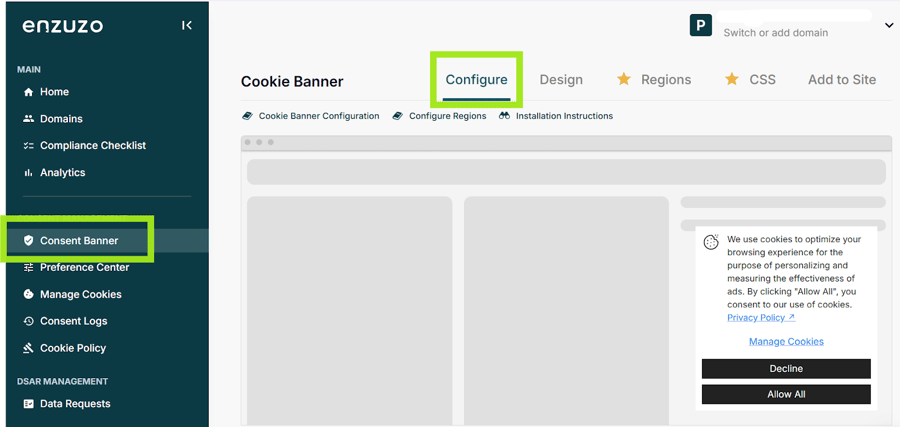
1. Create an Enzuzo account, navigate to Consent Banner in the left-hand dashboard, and click Configure. Here, you can also customize your banner's appearance, layout, and button options.
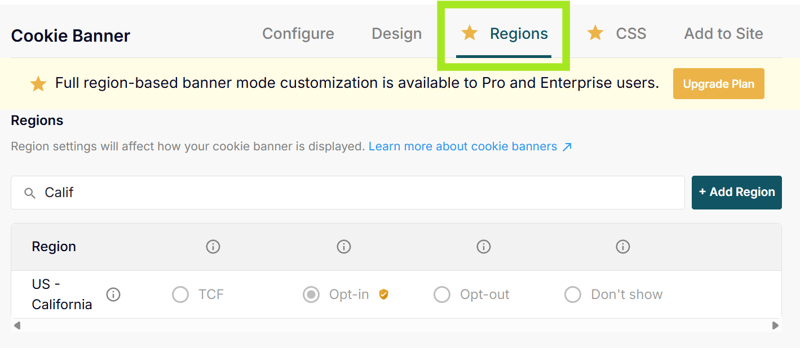
2. Click Regions to configure your banner for your target regions, e.g., California, so visitors see it prominently on every first visit.
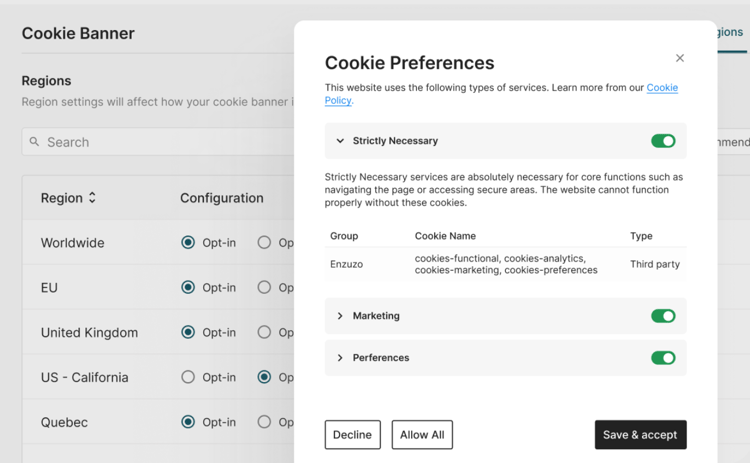
3. In Enzuzo's dashboard, set up your cookie categories: Strictly Necessary, Analytics, Marketing, and Preferences. Meta Pixel belongs under Marketing.
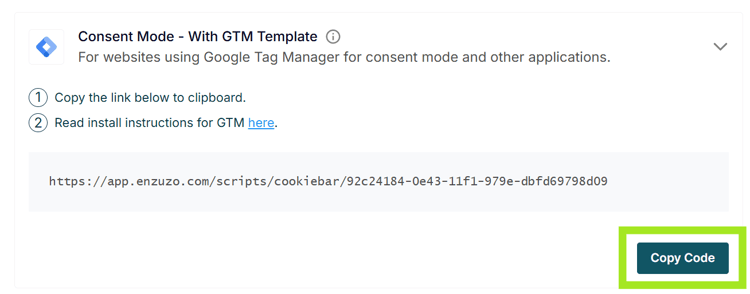
4. Install your Enzuzo cookie banner on your website before GTM loads. If GTM loads first, Meta Pixel may fire before the consent signal is available. You can do this using either:
Consent Mode with GTM Template (do not hard-code the Enzuzo script in your site header separately)
Manual installation by placing the Enzuzo script high in your website’s <head> section, above the GTM container snippet.
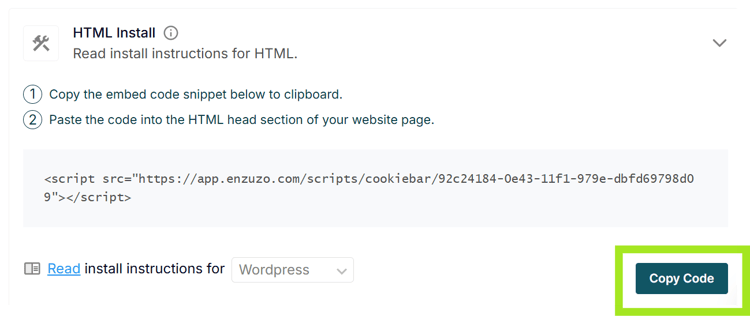
5. Then, configure your tags in GTM to utilize the consent signals pushed to the dataLayer.
Enzuzo logs every consent event with a timestamp. These records document when each user granted or denied consent, which can serve as evidence if a CIPA claim is ever brought against your site.
Step 3: Install Enzuzo through GTM
Note: The next steps assume you have Google Tag Manager set up on your website. If you don’t, follow this guide from Google first.
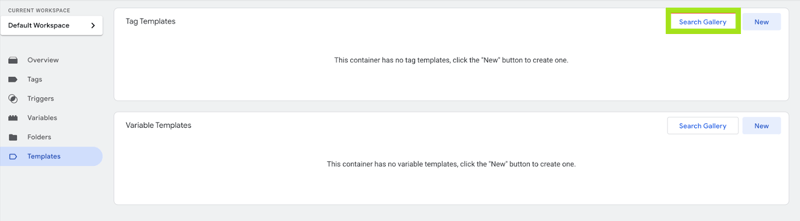
1. In GTM, go to Templates, then Search Gallery.
2. Select the Enzuzo Cookie Manager template from the list.
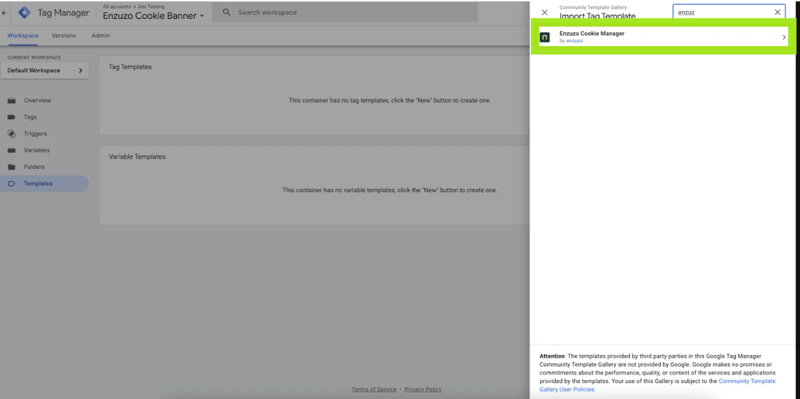
3. Add Enzuzo Cookie Manager to your workspace.
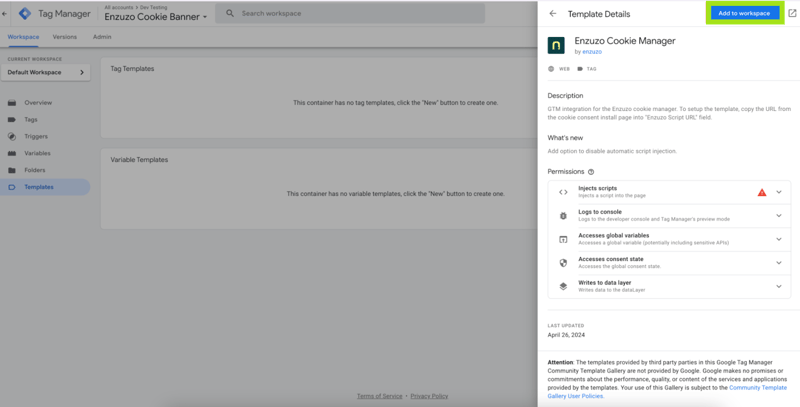
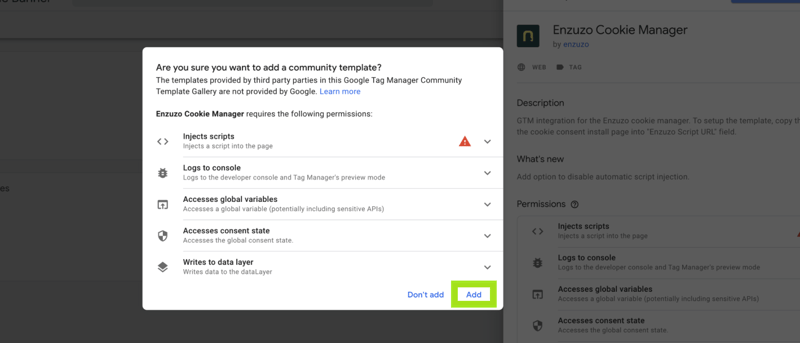
4. Add the template to your workspace.
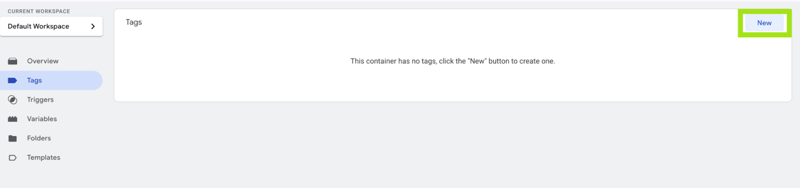
5. Now, go to Tags and click New.
6. Name the tag, select Enzuzo Cookie Manager as the type, and set the trigger to Consent Initialized.
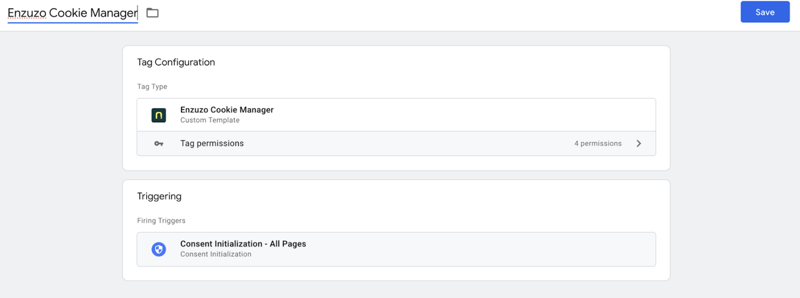
7. Click on Tag Configuration and copy your Enzuzo Script URL created in Step 1.
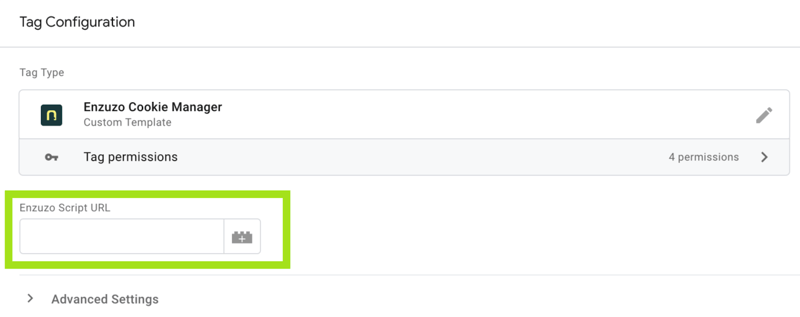
9. Click Save and then publish your workspace.
Step 4: Gate Meta Pixel the right way
This is the part that fixes the timing problem in a CIPA Meta Pixel lawsuit pattern.
1. Create a Custom Event trigger for Enzuzo’s consent update event. Navigate to Triggers > New > Custom Event. Event name: enzuzo_consent_update
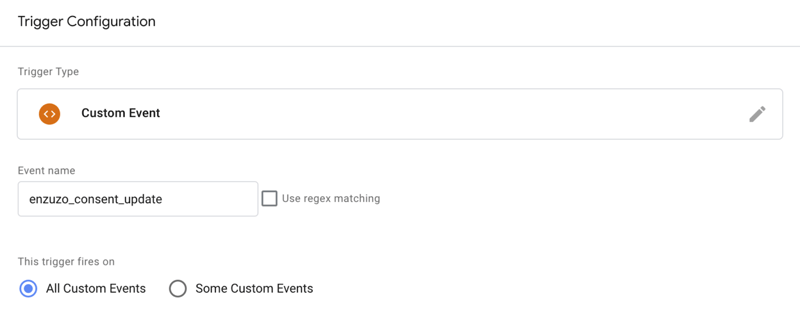
2. Open your Meta Pixel tag in GTM. Keep your All Pages trigger (for returning visitors who already opted in). Then, add the new enzuzo_consent_update trigger (for first-time visitors who opt in after the page loads).
3. In the Meta Pixel tag settings, switch on GTM’s consent checks for the tag. Use Require additional consent for tag to fire.
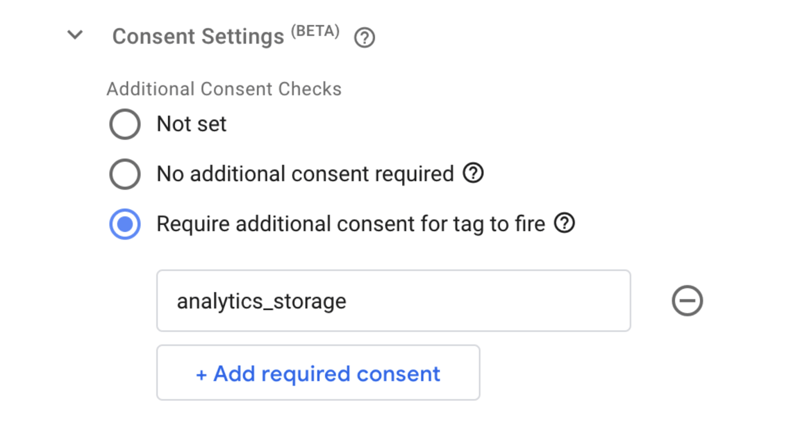
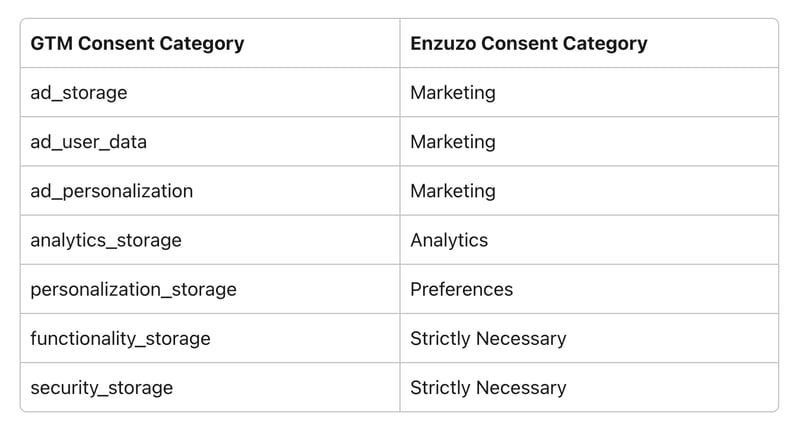
4. For a marketing pixel, map the requirement to the consent types your banner updates (commonly ad_storage, and, when in scope, ad_user_data and ad_personalization).
Step 5: Set tag order so consent runs first
1. In GTM Preview, the consent default should appear before any tags that could send data. If you see tags firing first, move Enzuzo to the Consent Initialization trigger and re-test.
2. If your banner loads asynchronously and you see early Google tag requests, review whether your setup uses a short wait_for_update window. Google documents this as a way to give the CMP time to push consent updates before tags send data.
Step 6: Test before publishing
Verify the setup using GTM's Preview Mode alongside your browser's network inspector before you publish anything.
1. Open your website in Preview Mode in a new incognito window to simulate a new visitor with no consent history.
2. Check that no Meta Pixel network requests fire before you interact with the Enzuzo banner.
3. Click Accept All and confirm Meta Pixel fires immediately.
4. Reload the page to simulate a returning visitor who's already consented, and confirm Meta Pixel fires on load.
5. Open another incognito window, click Reject All, and confirm Meta Pixel doesn't fire during that session.
Once all these scenarios pass, publish your GTM container.
👉 Need Expert Help or Advice? Reach out to us in Live Chat
Extra compliance steps
Configure opt-in consent for California visitors
Your consent management platform must run in opt-in mode for California visitors, meaning all non-essential scripts including Meta Pixel are blocked by default until the user actively accepts. Geofencing this to California is a practical starting point. Other US states generally require opt-out consent, not opt-in, so a geofenced approach lets you apply the stricter standard where it is legally required without impacting data collection in other regions.
Update your privacy policy to name Meta Pixel specifically
Your privacy policy must identify Meta Pixel by name, describe what data it collects, and explain what it is used for. This is both a CIPA consent defence requirement and a CCPA transparency obligation. A user who agrees to a privacy policy that specifically names Meta Pixel and its data practices has a much weaker basis for a CIPA wiretapping claim than a user whose only notice was a generic analytics disclosure.
Build and retain timestamped consent logs
Every consent decision, acceptance or rejection, must be logged with a timestamp and retained. These records are your primary documented evidence that consent was obtained before any tracking began. Without them, you cannot demonstrate to a court or plaintiff firm that your implementation was compliant at the time the alleged violation occurred. Enzuzo logs every consent event automatically and retains records for up to seven years.
For a full comparison of consent management platforms for businesses in this situation, and for context on how Meta Pixel claims fit into the broader landscape of compliance fines and enforcement, see our related guides.
Frequently asked questions about Meta Pixel lawsuits
Is Meta Pixel legal?
Meta Pixel itself is a legal advertising tool. Legal exposure arises from how and when it is deployed. If Meta Pixel fires before a California user has explicitly consented, plaintiff firms argue it constitutes illegal interception under CIPA Section 631. The tool is legal; the implementation may not be.
What is pixel litigation?
Pixel litigation is a broad term for demand letters and lawsuits arguing that a website's tracking pixels transmitted user data to third parties without valid prior consent. In California, these claims most commonly cite CIPA Section 631 (wiretapping) and seek $5,000 in statutory damages per violation without requiring proof of actual harm.
Can I still use Meta Pixel on my website?
Yes, but only after a user has explicitly consented to marketing cookies. Meta Pixel must be blocked from firing until affirmative consent is obtained, particularly for California visitors. A properly implemented consent management platform with GTM gating allows you to continue using Meta Pixel for advertising while maintaining CIPA compliance.
What data does Meta Pixel collect?
By default, Meta Pixel transmits the full page URL (including any embedded search terms), the referring URL, the user's IP address, browser and device information, Facebook cookie identifiers, and any custom events you configure. E-commerce implementations also transmit product views, cart additions, and purchase data. All of this is transmitted to Meta's servers on page load before any consent decision is recorded.
What is the Google equivalent of Meta Pixel?
Google's equivalent tools are Google Ads conversion tracking and Google Analytics 4 (GA4), both implemented via the Google tag in GTM. These tools serve a similar advertising attribution and measurement purpose. Like Meta Pixel, they require proper consent gating for California visitors under CIPA. Unlike Meta Pixel, Google's Consent Mode provides a built-in mechanism for respecting consent signals, though Consent Mode alone does not stop all data transmission.
How do I know if my Meta Pixel is CIPA compliant?
Run the network tab test: open your site in incognito, filter network requests for facebook.com/tr, and reload without interacting with your consent banner. If any requests appear, your pixel is firing without consent. Also check GTM's tag firing order in Preview Mode and search your site's HTML for hard-coded fbq('init') calls outside GTM.
What happens if Meta Pixel fires before consent?
Each firing of Meta Pixel before consent is a separate potential CIPA violation carrying $5,000 in statutory damages with no proof of harm required. In class action cases, damages are calculated across all affected California users. Most cases settle before trial, with demand letters typically calibrated to be cheaper to resolve than to litigate, but the threat is real and the economics favour the plaintiff firm.
Which US states have laws covering Meta Pixel tracking?
California's CIPA creates the most significant exposure because it is a wiretapping statute with a private right of action and $5,000 per-violation statutory damages. Illinois has the BIPA statute with similar private enforcement. Other states including Virginia, Colorado, Connecticut, and Texas have enacted general privacy laws, though most use a different enforcement model. California is the primary litigation risk for Meta Pixel specifically.
Get CIPA-compliant before a demand letter arrives.
Enzuzo is a Google-certified consent management platform that blocks Meta Pixel and all non-essential scripts until consent is granted, logs every event for legal documentation, and integrates with GTM in an afternoon. Rated 4.6/5 on G2.
Osman Husain
Osman is the content lead at Enzuzo. He has a background in data privacy management via a two-year role at ExpressVPN and extensive freelance work with cybersecurity and blockchain companies. Osman also holds an MBA from the Toronto Metropolitan University.
LinkedIn →More related blogs
Your next read